
Premise
This was something that I wish I had put time aside for during teaching that would have helped me cut down some time during planning. During the holiday of each term, I would sit down and plan the following term. This would involve reflecting on the term prior, how the students engaged, how their grades looked, and how they were able to explain their understanding. From there, I would scaffold as necessary for the next term’s materials, and even the term afterwards.
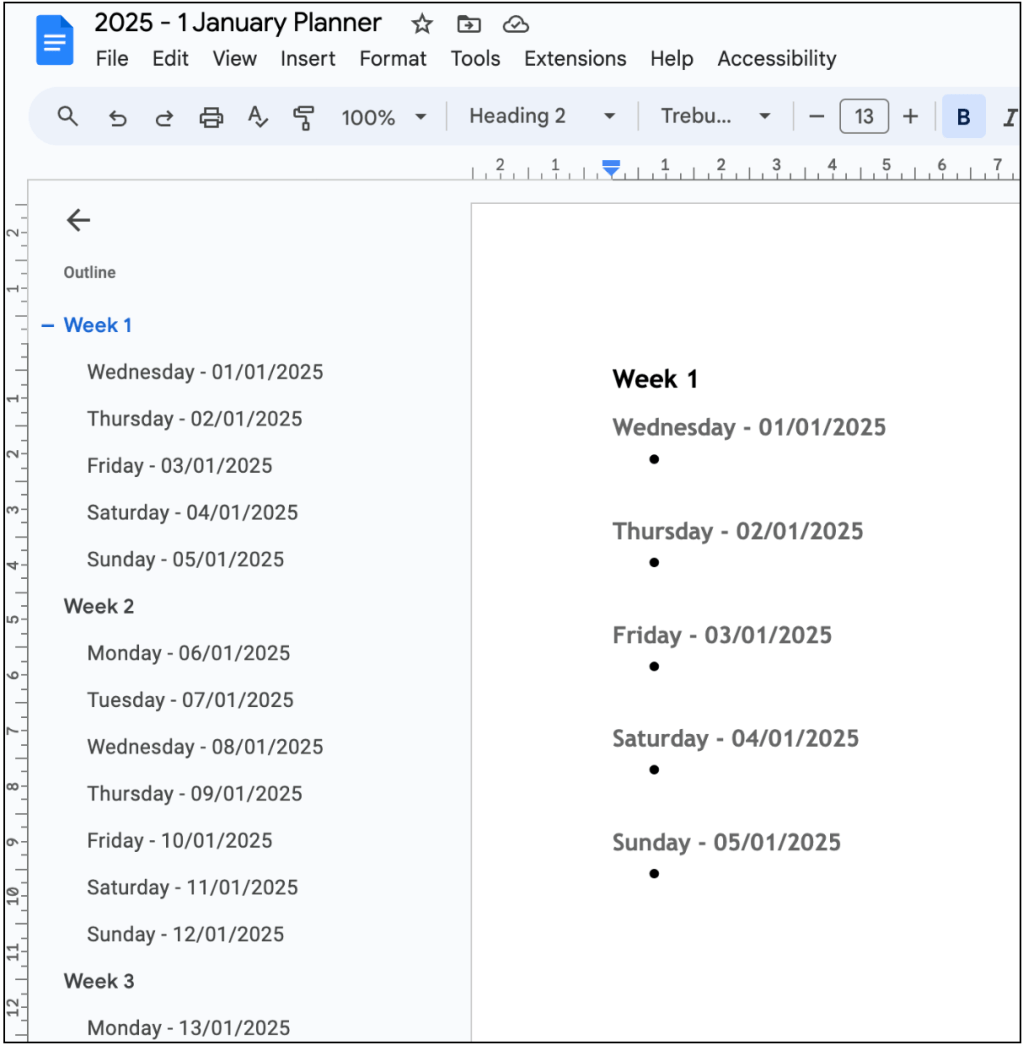
When it came to my yearly planners, I loved using the Google Suite. I would plan out the ‘x’ week term in Google Docs like this. Each day consisted of the lessons that I was teaching:

I’d create my lesson plans in Docs, presentations in Slides, and any spreadsheeting in Sheets. As I created the lessons, I would link the Slides to the planner:

This made sense in my head as I was able to think ahead and tick items off my to-do list as I went through it. It also meant that I was dependent (in a single moment) on one document, Weekly Planner. You can see how I evolved this over the 2 years:

However, you can see that this planner can get full quite quickly, especially as you put down more ideas and things to complete on the list. Each term, I had two options:
- Copy the previous term’s planner, remove all of the unnecessary information, update the dates, etc, or
- Start with a blank template and build up.
Either way, there’s a fair bit of manual work involved. This is how I got to the position that I did when it comes to this post. I wanted to use the most efficient process (that I would currently be using based on my Google Suite knowledge) that provides a quick and easy process for making a yearly calendar.
Approach
Since I no longer require the 4 planners, I still utilise a weekly planner, but I’ve broken this down into 12 documents — one of each month of the year. I could have done quarters, but the use of these files can be so dependent on what’s happening throughout my year and how much information I need to remember and track.
Sheets
I first like to use Sheets functions or quickly output some text in the manner I like to view it. Here is the link: https://docs.google.com/spreadsheets/d/1T9kaov1YAg1iCmiyXjxZAW_vEEOP0S1SQ6smOPuyJW8/edit?gid=0#gid=0.
I’ve started by outputting all of the days in the year:

I want to output days of the week in their name format, and I know that I will need to use a VLOOKUP function to assist me with this. This means, I’ll create a lookup table for an easy reference point:

Now, we can use a combination of the VLOOKUP, WEEKDAY, and TEXT functions out output a sequence of information that I like to view as my daily headers in the planner — Wednesday – 01/01/2025:
=VLOOKUP(WEEKDAY(A2,2),$D$2:$E$8,2,0)&” – “&TEXT(A2,“dd/mm/yyyy”)

Apps Script
Below is the entire script, but I’m going to break it down, line by line, afterwards:
function createMonthlyPlanners() {
var folderId = “<enter your Drive folder ID here>”; // Replace with your folder ID
var sheetId = “<enter your Sheet ID here>”; // Replace with your sheet ID
try {
var folder = DriveApp.getFolderById(folderId);
var sheet = SpreadsheetApp.openById(sheetId).getSheetByName(‘Dates’);
var data = sheet.getRange(‘A2:B’ + sheet.getLastRow()).getValues();
var months = [‘January’, ‘February’, ‘March’, ‘April’, ‘May’, ‘June’, ‘July’, ‘August’, ‘September’, ‘October’, ‘November’, ‘December’];
var currentMonth = -1;
var currentYear = -1;
var currentWeek = 1; // Initialise current week
var docs = []; // To store the created documents
var doc;
// First pass: Create all documents and store their IDs
for (var i = 0; i < data.length; i++) {
var date = new Date(data[i][0]);
if (!date || isNaN(date.getTime())) continue;
var month = date.getMonth();
var year = date.getFullYear();
if (month !== currentMonth || year !== currentYear) {
if (doc) {
doc.saveAndClose();
}
var fileName = year + ” – ” + (month + 1) + ” ” + months[month] + ” Planner”; // Include month number and name in filename
Logger.log(‘Creating document: ‘ + fileName);
doc = DocumentApp.create(fileName);
folder.addFile(DriveApp.getFileById(doc.getId()));
docs.push({ docId: doc.getId(), month: month, year: year }); // Store the document ID with its month and year
currentMonth = month;
currentYear = year;
currentWeek = 1; // Reset week count at the beginning of each month
}
}
// Save the last document
if (doc) {
doc.saveAndClose();
}
// Second pass: Add content to documents and add links
for (var i = 0; i < data.length; i++) {
var date = new Date(data[i][0]);
if (!date || isNaN(date.getTime())) continue;
var month = date.getMonth();
var year = date.getFullYear();
var docInfo = docs.find(d => d.month === month && d.year === year);
doc = DocumentApp.openById(docInfo.docId);
if (month !== currentMonth || year !== currentYear) {
currentMonth = month;
currentYear = year;
currentWeek = 1; // Reset week count at the beginning of each month
doc.getBody().appendParagraph(‘Week ‘ + currentWeek).setHeading(DocumentApp.ParagraphHeading.HEADING2); // Add week number at the beginning of each document
currentWeek++; // Increment week count after setting it
} else if (date.getDay() === 1) {
doc.getBody().appendParagraph(‘Week ‘ + currentWeek).setHeading(DocumentApp.ParagraphHeading.HEADING2); // Add week number at the beginning of each week
currentWeek++; // Increment week count
}
doc.getBody().appendParagraph(data[i][1]).setHeading(DocumentApp.ParagraphHeading.HEADING3);
var bulletPoint = doc.getBody().appendListItem(”);
bulletPoint.setGlyphType(DocumentApp.GlyphType.BULLET);
doc.getBody().appendParagraph(‘ ‘); // Append a single space after each bullet point
if (date.getDay() === 0) {
doc.getBody().appendParagraph(‘ ‘); // Add an empty line after each Sunday
doc.getBody().appendPageBreak();
}
}
// Add links to the next month’s document at the end of each document
for (var i = 0; i < docs.length – 1; i++) {
var currentDoc = DocumentApp.openById(docs[i].docId);
var nextDoc = docs[i + 1];
var nextMonth = months[nextDoc.month];
currentDoc.getBody().appendParagraph(‘Next Month: ‘ + nextMonth + ‘ Planner’)
.setLinkUrl(‘https://docs.google.com/document/d/’ + nextDoc.docId + ‘/edit’);
currentDoc.saveAndClose();
}
// Add links to this month’s document at the beginning of each document
for (var i = 1; i < docs.length; i++) {
var previousDoc = DocumentApp.openById(docs[i – 1].docId);
var currentDoc = DocumentApp.openById(docs[i].docId);
var currentMonth = months[docs[i].month];
currentDoc.getBody().insertParagraph(0, ‘Previous Month: ‘ + currentMonth + ‘ Planner’)
.setLinkUrl(‘https://docs.google.com/document/d/’ + previousDoc.getId() + ‘/edit’);
currentDoc.saveAndClose();
}
} catch (e) {
Logger.log(‘Error: ‘ + e.toString());
}
}
function getWeekNumber(d) {
d = new Date(Date.UTC(d.getFullYear(), d.getMonth(), d.getDate()));
d.setUTCDate(d.getUTCDate() + 4 – (d.getUTCDay() || 7));
var yearStart = new Date(Date.UTC(d.getUTCFullYear(), 0, 1));
var weekNo = Math.ceil((((d – yearStart) / 86400000) + 1) / 7);
return weekNo;
}
Breakdown
Lines 1-3
- function createMonthlyPlanners():
This defines a new function called createMonthlyPlanners.
- var folderId = “<insert your Drive folder ID here>”:
Stores the ID of the Google Drive folder where the generated documents will be saved. This would be the portion of the URL after the /folders/ tag:
https://drive.google.com/drive/u/0/folders/10OgD…
- var sheetId = “<insert your Sheet ID here>”:
Stores the ID of the Google Sheet containing the dates and events. This would be the portion of the URL after the /spreadsheets/d/ tag:
https://docs.google.com/spreadsheets/d/1T9ka…
Lines 5-14
- try { … } catch (e) { … }:
Handles any errors that may occur during execution.
- var folder = DriveApp.getFolderById(folderId):
Retrieves the folder object from Google Drive using the folder ID.
- var sheet = SpreadsheetApp.openById(sheetId).getSheetByName(‘Dates’):
Opens the Google Sheet by ID and accesses the ‘Dates’ sheet.
- var data = sheet.getRange(‘A2:B’ + sheet.getLastRow()).getValues():
Retrieves the data from columns A and B, starting from row 2 to the last row.
- var months = […]:
Array of month names.
- var currentMonth = -1, var currentYear = -1, var currentWeek = 1:
Initialises variables to track the current month, year, and week. -1 ensures the first comparison will trigger a new document creation.
- var docs = []:
Array to store information about the created documents.
- var doc:
Variable to hold the current Google Document object.
Lines 17-36
- for (var i = 0; i < data.length; i++):
Loops through each row of data.
- var date = new Date(data[i][0]):
Converts the first column of the current row to a date object.
- if (!date || isNaN(date.getTime())) continue:
Skips the iteration if the date is invalid.
- var month = date.getMonth(), var year = date.getFullYear():
Extracts the month and year from the date.
- if (month !== currentMonth || year !== currentYear):
Checks if the current date’s month or year is different from the previously processed month or year.
- if (doc) { doc.saveAndClose(); }:
If there’s an existing document being worked on, saves and closes it.
- var fileName = year + ” – ” + (month + 1) + ” ” + months[month] + ” Planner”:
Creates a filename with the format “Year – MonthNumber MonthName Planner”.
- Logger.log(‘Creating document: ‘ + fileName):
Logs the creation of the new document.
- doc = DocumentApp.create(fileName):
Creates a new Google Document with the generated filename.
- folder.addFile(DriveApp.getFileById(doc.getId())):
Adds the newly created document to the specified Google Drive folder.
- docs.push({ docId: doc.getId(), month: month, year: year }):
Stores the document ID along with its month and year.
- currentMonth = month, currentYear = year, currentWeek = 1:
Updates the current month and year, and resets the week count.
Lines 39-40
- if (doc) { doc.saveAndClose(); }:
Saves and closes the last document after finishing the loop.
Lines 44-71
- for (var i = 0; i < data.length; i++):
Loops through each row of data again.
- var date = new Date(data[i][0]):
Converts the first column of the current row to a date object.
- if (!date || isNaN(date.getTime())) continue:
Skips the iteration if the date is invalid.
- var month = date.getMonth(), var year = date.getFullYear():
Extracts the month and year from the date.
- var docInfo = docs.find(d => d.month === month && d.year === year):
Finds the document information for the current month and year.
- doc = DocumentApp.openById(docInfo.docId):
Opens the document by its ID.
- if (month !== currentMonth || year !== currentYear):
Checks if the current date’s month or year is different from the previously processed month or year.
- currentMonth = month, currentYear = year, currentWeek = 1:
Updates the current month and year, and resets the week count.
- doc.getBody().appendParagraph(‘Week ‘ + currentWeek).setHeading(DocumentApp.ParagraphHeading.HEADING2):
Adds a heading for the new week.
- currentWeek++:
Increments the week count.
- else if (date.getDay() === 1):
If the current date is a Monday.
- doc.getBody().appendParagraph(‘Week ‘ + currentWeek).setHeading(DocumentApp.ParagraphHeading.HEADING2):
Adds a heading for the new week.
- currentWeek++:
Increments the week count.
- doc.getBody().appendParagraph(data[i][1]).setHeading(DocumentApp.ParagraphHeading.HEADING3):
Adds the event description as a heading.
- var bulletPoint = doc.getBody().appendListItem(”):
Adds a bullet point.
- bulletPoint.setGlyphType(DocumentApp.GlyphType.BULLET):
Sets the bullet point type.
- doc.getBody().appendParagraph(‘ ‘):
Adds a single space after each bullet point.
- if (date.getDay() === 0):
If the current date is a Sunday.
- doc.getBody().appendParagraph(‘ ‘):
Adds an empty line after each Sunday.
- doc.getBody().appendPageBreak():
Adds a page break after each Sunday.
Lines 76-82
- for (var i = 0; i < docs.length – 1; i++):
Loops through the documents except the last one.
- var currentDoc = DocumentApp.openById(docs[i].docId):
Opens the current document.
- var nextDoc = docs[i + 1]:
Gets the next document information.
- var nextMonth = months[nextDoc.month]:
Gets the name of the next month.
- currentDoc.getBody().appendParagraph(‘Next Month: ‘ + nextMonth + ‘ Planner’):
Adds a link to the next month’s planner.
- .setLinkUrl(‘https://docs.google.com/document/d/’ + nextDoc.docId + ‘/edit’):
Sets the URL for the link.
- currentDoc.saveAndClose():
Saves and closes the current document.
Lines 86-92
- for (var i = 1; i < docs.length; i++):
Loops through the documents except the first one.
- var previousDoc = DocumentApp.openById(docs[i – 1].docId):
Opens the previous document.
- var currentDoc = DocumentApp.openById(docs[i].docId):
Opens the current document.
- var currentMonth = months[docs[i].month]:
Gets the name of the current month.
- currentDoc.getBody().insertParagraph(0, ‘Previous Month: ‘ + currentMonth + ‘ Planner’):
Adds a link to the previous month’s planner at the beginning.
- .setLinkUrl(‘https://docs.google.com/document/d/’ + previousDoc.getId() + ‘/edit’):
Sets the URL for the link.
- currentDoc.saveAndClose():
Saves and closes the current document.
Lines 95-96
- catch (e) { Logger.log(‘Error: ‘ + e.toString()); }:
Logs any errors that occur during the execution of the script.
Lines 100-105
- function getWeekNumber(d):
Defines a helper function to get the week number for a given date.
- d = new Date(Date.UTC(d.getFullYear(), d.getMonth(), d.getDate())):
Converts the date to UTC.
- d.setUTCDate(d.getUTCDate() + 4 – (d.getUTCDay() || 7)):
Adjusts the date to get the correct week number.
- var yearStart = new Date(Date.UTC(d.getUTCFullYear(), 0, 1)):
Gets the start of the year.
- var weekNo = Math.ceil((((d – yearStart) / 86400000) + 1) / 7):
Calculates the week number.
- return weekNo:
Returns the week number.
Final Output
After you execute the script, you will be provided with a folder of 12 monthly planners:


Did you find this helpful? Did you use it? Did you adjust it? How? Tell me, I’m interested to hear your thoughts!
 James Miller CV
One response to “76 – Preparing a Google Doc Calendar for 2025”
[…] in 2024, I made a post about creating a year’s worth of monthly planners using a mixture of Google’s Sheets, Apps […]