
Answer from last week’s blog:
How did you go with last week’s blog? Could you figure it out? Could you make it more efficient than my answer?
=FILTER(UNIQUE(H5:H),UNIQUE(H5:H)<>“”,UNIQUE(H5:H)<>“Character”,UNIQUE(H5:H)<>“Main Characters”)
Link to the Google Sheet here: 23 – Having Issues Finding Peoples’ Names?
What IF?
This is a fun question. What if we reduced the price on that product? What if we went to the beach instead of the forest? What if we chose that project instead of this one? ‘What if’ leads your mind down the roads of various scenarios that could potentially happen. The thing is, how does you mind visualise the roads that you could take? This week’s blog is to showcase how my brain takes the logical steps and puts them into perspective.
Explanation
If I was to explain what the IF function was to a 5 year old, I would tell them that there’s something on a computer called Excel and it’s a magic box. It can do different things with numbers and words. Inside this magic box lives a little wizard and its name is IF and it helps Excel to make decisions.
Let’s say you have some toys and you want to decide whether to play outside or inside. If it is sunny, the wizard inside Excel would tell you to “play outside!” If it’s rainy, the wizard would tell you to “play inside!”
So, what the IF function in Excel does with all those words and numbers is give you a decision. These decisions can be either true (do one task) or false (do another taker).
Visualisation
It’s one thing to say all of this in words, and explain it to a five year old, but I believe it’s easier to see how this process looks visually. This is an example template of the IF function in Excel.

Nested IFs
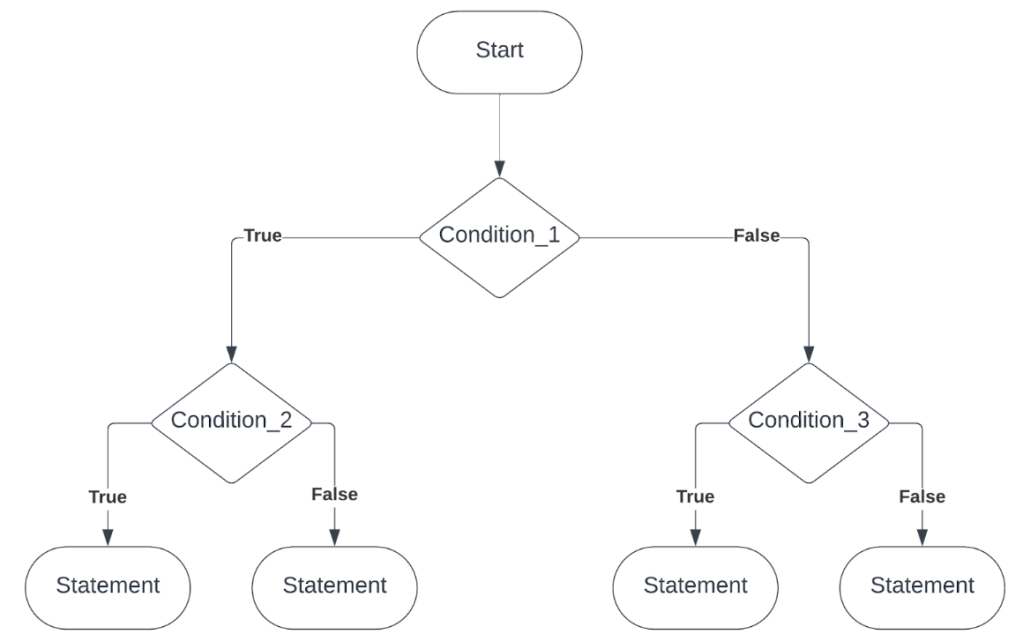
We can actually have multiple IF functions inside one another. *Insert Inception joke here* This process is called nesting IF functions (and they are nested IF functions). This is what it looks like visually (essentially just an extension of the diagram above):

You can see that we have the initial condition_1. Depending on whether the outcome of that first condition is true or false, it will track down to the next layer; True going to condition_1 and False going to condition_3. To make sense of this, here is a concrete example to determine the amount of pay someone receives based on certain conditions/requirements:

Let’s have a look at this in working form; inside a Google Spreadsheet:
From my portfolio, you can see that this process of using nested IF functions can assist in deriving a person’s pay rate, based on particular conditions. This code below is the first entry in column F, under ‘Yearly Salary’:
=IF(
AND(
OR(C5=“Project Manager”,C5=“Risk Analyst”),(TODAY()-E5)/365>=3),
VLOOKUP(C5,‘6: Data_Tables’!$E$3:$G$8,2,0)*(1+(‘6: Data_Tables’!$B$14+‘6: Data_Tables’!$B$15)),
IF(
OR(C5=“Project Manager”,C5=“Risk Analyst”),
VLOOKUP(C5,‘6: Data_Tables’!$E$3:$G$8,2,0)*(1+(‘6: Data_Tables’!$B$15)),
IF(
(TODAY()-E5)/365>=3,
VLOOKUP(C5,‘6: Data_Tables’!$E$3:$G$8,2,0)*(1+(‘6: Data_Tables’!$B$14)),
VLOOKUP(C5,‘6: Data_Tables’!$E$3:$G$8,2,0)
)))
Homework
Try to form some IF functions using the following logical statements:
- If a particular cell says “Yes”, then the output is 1, else 2,
- If a person scores 50/100 or greater, then they receive a Pass, else they Fail,
- If a number is equal to or greater than 0, then it is positive, else it is negative,
- If a person has a credit score equal to or greater than 800, then it is Excellent.
- Continuing from 4, if a person has a credit score greater than 700, then it is Very Good, and
- Continuing from 5, if a person has a credit score greater than 625, then it is Good. If it’s greater than 550, then it is Fair, otherwise it is Below Average.
 James Miller CV
2 responses to “24 – What IF We Look at it Like This?”
[…] work on the following week’s post regarding how IFs look. Whilst preparing the data for that post, I came across the credit score website and the information within it. I followed the IMPORTHTML […]
[…] Answer from last year’s blog […]