
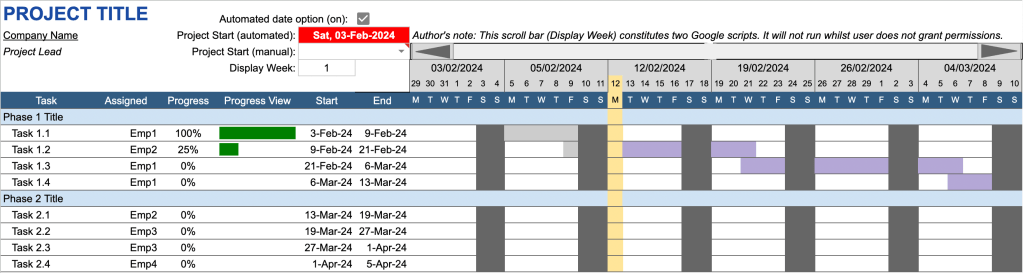
Many things that I create, I understand that it will be subjected to various iterations. These iterations are essentially upgrades or will contain additional functionality. Since I first developed the Gantt Chart on the Excel portion of Data and Business Analytics Portfolio, I have wanted to make the date (and subsequently chart view) possess the option for manual configuration or autoscroll.
The trickiest part for me was developing the formula that didn’t end up having a circular dependency. Over the course of time, developing my skills in Excel, Python, and maths, I have finally been able to place the MOD function into the functional working part of my brain. I have been able to finally utilise its functionality within this function.
Here is the link to the document that I am working through:
This is my current Gantt Chart:

What I’m concerned with is the red date cell:

This is a two-fold solution that provides 2 automated processes. It will reduce my work time by 30 minutes each year: 2 minutes for accessing a computer, opening the spreadsheet, update the date, checking everything is functional (2 minutes * 12 months = 24 minutes); and adding a year’s worth of dates each year (5 minutes) – 24+5 = 29 minutes.
Here are the benefits that the solution provides me:
- I will not need to continue accessing this Spreadsheet to update the Gantt Chart time each month,
- I will not need to continually add dates to the date selection list. I can not create an auto-generated list of dates, 1 year in advance.
Formula
Below is the final formula that I used in my presentation:
=IF(MOD(LEFT(EOMONTH(NOW(),0),2),3)=0,
EOMONTH(NOW(),0)-27,
IF(MOD(LEFT(EOMONTH(NOW(),0),2),3)=2,
EOMONTH(NOW(),0)-26,
IF(MOD(LEFT(EOMONTH(NOW(),0),2),3)=1,
IF(MID(NOW(),SEARCH(“/”,NOW())+1,2)=“02”,
EOMONTH(NOW(),0)-25,
EOMONTH(NOW(),0)-28)))
That’s a lot, so let’s break it down. This is the main part that I am using to calculate the length of a month:
MOD(LEFT(EOMONTH(NOW(),0),2),3)
EOMONTH shows me the last calendar date for the date that I enter into its first argument. Since I want this to update live, I will use the NOW() function, which outputs the current date and time.
Next I am interested in knowing whether the number of days in any given month is equal to 28, 29, 30, or 31. From the output below, you can see four different columns:
Date is the date for each month over the next year and a bit, Day is the maximum number of days that month has, Day / 3 is the dividing factor, and MOD(Day,3) is the modulo formula. I have highlighted the 4 different number of days in a month that can be observed over 4 years (including a leap year).
- When a month has 31 days, its modulo is 1 (or, when 31 is divided by 10, there is .33 remaining as this fraction is 1/3).
- When a month has 30 days, its modulo is 0 (as 30/10 = 3.0, hence 0 remaining).
- When a month has 29 days, its modulo is 2 (or, when 29 is divided by 10, there is .66 remaining as this fraction is 2/3).
- When a month has 28 days, its modulo is 1 (or, when 31 is divided by 10, there is .33 remaining as this fraction is 1/3).

We need to consider the case where the day’s modulo is 1; 31 and 28 days. But, for now, we have the logical condition for these IF functions. Starting from the beginning of the formula, we can begin constructing the tests and output the values when the first logical statement is true; when the months have 30 days.
If the entered month has 30 days:
IF(MOD(LEFT(EOMONTH(NOW(),0),2),3)=0,
I want to start this project on the 3rd of that month, so show me the 3rd of that month. This is how I arranged my IF statements – I want the project to start on the 3rd, so 30 days – 27 days = 3.
EOMONTH(NOW(),0)-27,
If this isn’t true, then go to the next logical test. If the entered month has 29 days:
IF(MOD(LEFT(EOMONTH(NOW(),0),2),3)=2,
I want to start this project on the 3rd of that month, so show me the 3rd of that month. I want the project to start on the 3rd, so 29 days – 26 days = 3.
EOMONTH(NOW(),0)-26,
If this isn’t true, then go to the next logical test. This is where we start accounting for the two cases where the remainder of day / 3 = x.33, or modulo = 1. They were the months where the number of days was 31 or 28. The only month that has 28 is February every 4 years. This will be easier to capture in the code, rather than have to search for October, December, January, etc.
Like before, we start the logical test for modulo 1:
IF( MOD(LEFT(EOMONTH(NOW(),0),2),3)=1,
We will be taking two logical tracks to capture the two different cases.
Track 1: February where the year mod 4 = 0 (leap year).
Now, since we know that 28 days only occurs once in February every 4 years, we can set the flag for it. Much like that brain teaser question, ‘How many months have 28 days?’, we need to be specific to February only. To find this we can use the MID and SEARCH functions to find the month in the date output of NOW(). If this output is ‘02’, we know that the month is February, and due to its initial logical test, it is every 4th year.
Spoiler answer to that question: all months have 28 days.
IF(
MID(NOW(),SEARCH(“/”,NOW())+1,2)=“02”,
I want to start this project on the 3rd of that month, so show me the 3rd of that month. I want the project to start on the 3rd, so 28 days – 25 days = 3.
EOMONTH(NOW(),0))-25,
Track 2: all other months that have 31 days.
That first logical test shows us that the maximum number of days in the month is 31, so like the test for 30 days, we can now find the start date. I want to start this project on the 3rd of that month, so show me the 3rd of that month. I want the project to start on the 3rd, so 31 days – 28 days = 3.
EOMONTH(NOW(),0))-28))))
As an overview of how the code looks in my head:
30 days:
=IF(MOD(LEFT(EOMONTH(NOW(),0),2),3)=0,
EOMONTH(NOW(),0)-27,
29 days:
IF(MOD(LEFT(EOMONTH(NOW(),0),2),3)=2,
EOMONTH(NOW(),0)-26,
28 or 31 days:
IF(MOD(LEFT(EOMONTH(NOW(),0),2),3)=1,
28 days:
IF(MID(NOW(),SEARCH(“/”,NOW())+1,2)=“02”,
EOMONTH(NOW(),0)-25,
31 days:
EOMONTH(NOW(),0)-28)))
For this process to be truly automatic, I also created a list of monthly dates, one year in advance in the document.

The first cell determines the yearly dates by using the CHOOSE function:
=CHOOSE(F1+1,E3,E2)
It monitors a choice that the user makes and adapts accordingly (see Conditional Formatting below). Here are the subsequent cell formulae:
=IF(MOD(LEFT(EOMONTH(M60,0),2),3)=0,
EOMONTH(M60,0)-27+30,
IF(MOD(LEFT(EOMONTH(M60,0),2),3)=2,
EOMONTH(M60,0)-26+29,
IF(MOD(LEFT(EOMONTH(M60,0),2),3)=1,
IF(MID(M60,SEARCH(“/”,M60)+1,2)=“02”,
EOMONTH(M60,0)-25+28,
EOMONTH(M60,0)-28+31))))
Conditional Formatting
The final part of this was to add a trigger button, so the user has an option for manual or automatic view, but also to show which one was selected.


Next was to add the conditional formatting around these options. First it was necessary to ensure the data validation was appropriately set for the two (automated and manual) date pickers.

Next, was to colour the automated and manual dates, based on the option the user selected.
Automated

The order of rules (on the right hand side) are integral to the colours working when the toggle button is manipulated.
If F1 (the toggle button) is selected (TRUE), then I want the cell to be highlighted Red.
If F1 (the toggle button) is not selected (FALSE), then I want the cell to be highlighted White.
Manual

If F1 (the toggle button) is selected (TRUE), then I want the cell to be highlighted White.
If F1 (the toggle button) is not selected (FALSE), then I want the cell to be highlighted Red.
Conclusion
This solution has been a while in the making, but I knew that it would come to me over time. Surprisingly, this didn’t take too long to implement, but it has definitely removed the itch that I’ve had since developing this Gantt chart. I enjoy revisiting old projects and either upgrading them, or seeing what I would do differently if I were to make another one from scratch.
 James Miller CV
2 responses to “17 – Automating a Gantt Chart’s Date in Google Sheets”
[…] done something similar to this previously where I updated a feature on the Excel portion of my portfolio; providing users with an option for automated scrolling based […]
[…] have already created a Gantt Chart in my portfolio, and actually made a post about updating a part of it last year. However, I enjoy making Gantt Charts because I find them a […]